

Most people searching for a Fyle login already have an account and want to get into it quickly. Others are stuck: the password is forgotten, the verification code never arrived, or the company login page keeps redirecting them.
This guide covers the standard sign-in, single sign-on (SSO), password resets, mobile access, and the problems that most often block people. It was checked against Fyle’s own Help Center in October 2026. Features and screens can change, so use the Help Center as the final authority.
What Fyle is, and who needs to log in
Fyle is an expense management platform. Employees capture receipts and create expenses, and approvers and finance teams review and reconcile them. Fyle’s Help Center now refers to the product as Sage Expense Management in some articles, so you may see both names. The sign-in process is the same.
Fyle is a business tool, not a consumer app. Your organization’s administrator usually creates or invites your account, and you generally can’t sign up on your own.
Before your first login: verify your account
If you’re new, your Fyle administrator sends an invitation to your work email. Verifying your account through that email is a required step before you can log in.
If you never received the invitation:
- Check your spam or junk folder.
- Confirm with your admin that they used the right email address.
- Ask your admin to resend the invitation.
How to log in to Fyle with email and password
The standard process works in any modern web browser:
- Open the official Fyle sign-in page.
- Enter your work email address.
- Enter your password and select Sign In.
- If prompted, check your email for a 6-digit login code and enter it on the next screen.
- You land in your account.
The verification code is an extra security step, and it doesn’t appear on every login. If you don’t get a code, you can request a new one, but only twice per login session. A code expires after about 10 minutes. If it expires or you run out of resends, start the login from the beginning.
Fyle login with single sign-on (SSO)
Many companies connect Fyle to their identity system so employees use their regular company credentials. Fyle has supported SAML 2.0-based SSO for years.
The flow differs slightly from the password login:
- Go to the same Fyle sign-in page and enter your work email.
- If your organization has SSO enabled, Fyle redirects you to your company’s login page.
- Sign in with your usual company credentials.
- You’re sent back to Fyle and land in your account.
If your company uses SSO, you can’t bypass it with a separate Fyle password. A password typed into the Fyle form won’t work, and trying repeatedly won’t help. You must sign in through the company portal.
How to tell if your company uses SSO: If entering your email sends you to a page with your company’s branding, it does. If you’re unsure, ask your IT team or Fyle admin. They control the SSO setup.
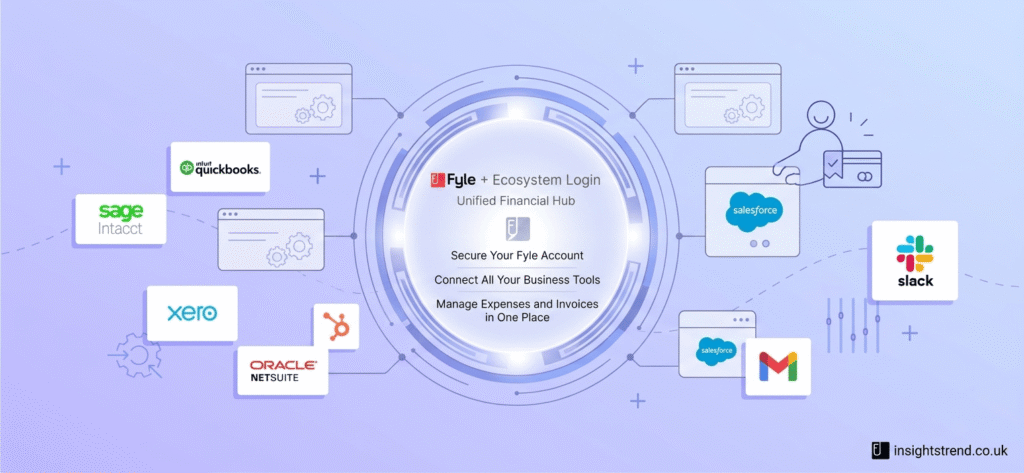
How to reset a forgotten Fyle password
If you sign in with a password, resetting it takes a couple of minutes:
- On the login page, select Forgot password?
- Enter the email address tied to your Fyle account.
- Open the email from Fyle and select the reset link.
- Create a new password that meets the displayed requirements, confirm it, and save.
The reset link is time-limited. Fyle’s documentation says it typically expires after about 15 minutes. If it stops working, request a fresh one rather than reusing the old email.
On the mobile app, the path is similar. Open the app, continue to the Fyle sign-in screen, and use the Forgot Password? option. A reset email is sent to your registered address.
If you use SSO, there is no Fyle password to reset. Password resets for your company account go through your organization’s identity system, not Fyle.
Logging in on mobile
Fyle has mobile apps for iOS and Android, mainly for capturing receipts and creating expenses on the go. Sign in with the same credentials you use on the web. If you’ve added and verified a mobile number in your account settings, you can also receive text notifications.
Troubleshooting common Fyle login problems
These are the issues most likely to block you, ordered roughly by how often they’re the culprit.
“My password isn’t working.”
Check which login method your company uses. If it uses SSO, a Fyle password won’t work. If it doesn’t, use the reset flow above. Also check for a stray space when pasting, and make sure Caps Lock is off.
“I’m not receiving the login code or reset email.”
Check spam and junk folders first. Then confirm you’re using the exact email address on your Fyle account. Many people have several work addresses or recently changed names. Some corporate email filters also delay automated messages, so wait a few minutes before requesting another.
“The code or reset link says it has expired.”
Both are short-lived by design. Start the process again and complete it promptly.
“I keep getting redirected to my company login.”
That’s normal behavior for SSO accounts. If the company login page then shows an error, the problem is on your organization’s side, so contact IT.
“My account says I don’t have access.”
Your admin may not have activated your account, or your role may be set incorrectly. Only an admin can check and fix that.
“I changed jobs or email address.”
Fyle accounts are tied to the email address your admin set up. If it changed, your admin will likely need to update your profile or issue a new invitation.
Security habits worth keeping
Expense data includes receipts, card transactions, and personal details, so a few habits are worth following:
- Use a strong, unique password that you don’t reuse on other services. A password manager makes this easy.
- Only enter your credentials on Fyle’s official sign-in page. Check the address in your browser before typing.
- Be cautious with emails claiming your account is suspended and demanding immediate login. If in doubt, go to the sign-in page directly instead of clicking an email link.
- Don’t share login codes with anyone, including people claiming to be support.
Who to contact when you’re still stuck
Work through the problem in this order:
- Your company’s Fyle administrator. They can resend invitations, confirm your account is active, and check your role.
- Your IT team, if you use SSO.
- Fyle support, if your admin confirms the account is fine and the problem persists. Fyle’s Help Center lists its support contact.
Giving them the exact error message, the email address you’re using, and whether you’re on web or mobile will speed things up.
Frequently asked questions
Can I create a Fyle account myself?
Generally no. Accounts are set up through your organization’s administrator, who sends an invitation you verify by email.
Is the Fyle login the same as the Sage Expense Management login?
Fyle’s Help Center uses both names for the same product’s sign-in flow, so the steps in this guide apply either way.
How many times can I resend the login code?
Fyle’s documentation currently states two resends per login session. Limits like this can change, so check the Help Center if yours behaves differently.
Do I need a password if my company uses SSO?
No. SSO accounts sign in through the company’s identity system, so there’s no separate Fyle password to manage.
Summary
Fyle login is straightforward once you know which route your account uses. Password users enter their work email and password, and sometimes a short-lived code. SSO users are redirected to their company’s login page. Almost every problem traces back to one of five causes: the wrong login method, an unverified account, an expired code or link, a mistyped or changed email address, or an inactive account that only an admin can fix.
