

Personify Health is a personalized health and wellbeing platform used by many employers and health plans. It combines activity tracking, challenges, health assessments, benefits information, rewards, and coaching tools in one place. Most people searching for “Personify Health login” simply need clear steps to reach their account, recover access if something goes wrong, or understand security features like multi-factor authentication.
This guide covers the practical ways to log in, reset a password, handle locked accounts, and avoid common problems. Information reflects official help resources available as of 2026.
What Personify Health Is and Who Uses It
Personify Health (formed from the earlier Virgin Pulse and HealthComp brands) provides employers with a single platform for wellbeing programs, care navigation, and related benefits tools. Members typically access it through their workplace benefits. Once enrolled, the same account works on both the member website and the mobile app. Your username is almost always the email address registered during enrollment.
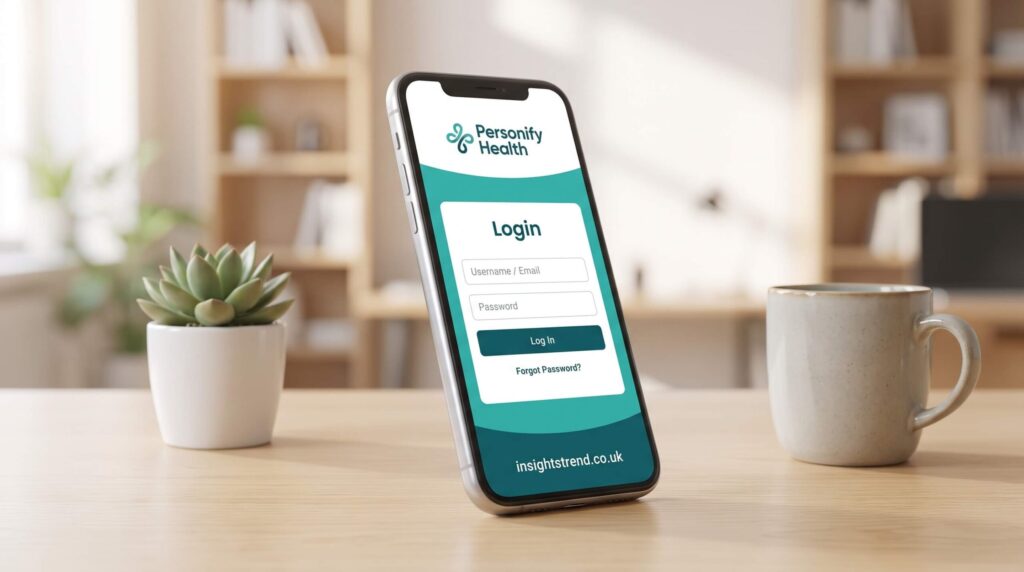
How to Log In on the Website
- Open a supported browser (Google Chrome is strongly recommended for stability).
- Go to the member login page. Common direct paths referenced in support materials include app.personifyhealth.com or app.member.personifyhealth.com. Some employers also provide a custom link or single-sign-on (SSO) option.
- Enter the email address associated with your Personify Health account in the username field.
- Enter your password.
- Complete any multi-factor authentication prompt if it appears (see MFA section below).
- You should then reach your dashboard, where you can view rewards, challenges, health assessments, connected devices, and benefits information.
If your employer uses SSO, you may first authenticate through your company’s login system before landing on the Personify Health experience.
How to Log In on the Mobile App
- Download the Personify Health app from the Apple App Store or Google Play.
- Open the app and tap Sign In.
- Enter the same email address used for your member account.
- Enter your password (or use biometric sign-in if already enabled).
- Complete MFA if prompted.
Once logged in, the app generally keeps you signed in until you manually log out. Closing the app does not end the session. Biometric options (Face ID or fingerprint) can be turned on in Settings > Security for faster access on subsequent opens.
Multi-Factor Authentication (MFA)
Personify Health uses MFA for added security. After entering your username and password, you receive a one-time code by text message (SMS) or email. Codes expire after 60 minutes. MFA typically appears when signing in on a new device or after roughly 30 days of inactivity. Single-sign-on connections are often treated as trusted and may skip the extra step. Keep your mobile number current and verified in your profile if you prefer SMS codes (U.S. and Canada +1 numbers are supported).
Resetting Your Password or Unlocking an Account
Forgot password
- On the login page, select the “Forgot Password?” option.
- Enter the email linked to your account and submit.
- Check your inbox (and spam/junk folder, especially for work emails).
- Click the reset link, create a new password, confirm it, and submit.
- The change takes effect immediately; use the new password on your next login.
Locked account
Accounts lock after repeated incorrect password attempts (typically after a fourth failed try following an earlier prompt). Use the same Forgot Password process to unlock and set a new password. Do not keep trying the old password once the account is locked.
Troubleshooting Common Login Problems
- Wrong email or username – Your username is the full email registered at enrollment. Try the original enrollment email if you have switched addresses.
- Browser issues – Switch to Chrome, clear cache and cookies, and try again. Avoid outdated browsers.
- Incorrect or outdated bookmark – Use the current member login path rather than an old saved link.
- App version – Update the mobile app; older versions can interfere with MFA or biometric features.
- No account yet – You must enroll first, usually through a link or instructions supplied by your employer. Search for your sponsor organization on the sign-up page or contact your benefits team.
- SSO conflicts – Follow your employer’s SSO instructions if that is how access is configured.
If problems continue, contact Personify Health member support (phone and email options are listed on official help pages and often in employer benefit materials). Have your registered email ready.
Tips for a Smooth Experience
- Bookmark the correct login page once you confirm it works.
- Enable biometric sign-in on the app for convenience and security.
- Keep your profile phone number and email up to date so MFA and password-reset messages arrive reliably.
- Sign in regularly if your program tracks activity or awards points for engagement; some features sync better with consistent use.
- Use the same credentials across web and app—there is one account.
Frequently Asked Questions
Can I change my username?
No. The username remains the email associated with the account. Contact support if the email itself needs updating.
Do I stay logged in on the app?
Yes, until you deliberately log out. This is intentional for convenience.
What if I never enrolled?
Enrollment is required first and is usually initiated through your employer’s benefits portal or a provided registration link. Eligibility is checked during sign-up.
Is there a different login for certain employers?
Some organizations use custom enrollment or SSO links. Always start with the instructions or URL your employer provided.
How do I turn on Face ID or fingerprint?
In the mobile app: More > Settings > Security > Biometric Sign In, then follow the device prompts to grant permission.
Conclusion
Personify Health login is straightforward once you use the correct email, a current browser or updated app, and the proper member portal address. Most access issues resolve with a password reset, browser refresh, or MFA verification. Bookmark the working login page, keep your contact details current, and reach out to member support if enrollment or technical problems persist. With a working account you can track activity, join challenges, complete assessments, and use the wellbeing and benefits tools your employer has made available.
